Contents:
Recently, cyberattacks on the information systems of companies and universities have caused widespread damage, including personal information leaks and ransomware attacks involving ransom demands.
In response to these circumstances, the University of Tsukuba will enhance security measures for its information systems. As part of these security enhancements, we have decided to require multifactor authentication (MFA) for Microsoft 365 (M365).
Implementation Date: November 11, 2026
Starting on that date, you will be required to use MFA when signing in to M 365 with your @u or @un account.
- Currently, for @u and @un accounts, MFA is not required when signing in from the on-campus network. However, starting on that date, MFA will be required even when signing in from the on-campus network.
- Currently, for @u accounts, MFA is optional, and you can choose whether to enable or disable it. However, starting on that date, MFA will be required regardless of users’ current settings.
| MFA for M365 | Current | → | Starting on Nov.11, 2026 | ||
|---|---|---|---|---|---|
| On Campus | Off Campus | On Campus | Off Campus | ||
| @u | Not required | Optional | Required | Required | |
| @un | Not required | Required | Required | Required | |
If you have already set up MFA using Microsoft Authenticator or another MFA methods, you do not need to set it up again.
If you want to check or modify your authentication settings, see “How to check the current settings” below.
Topics:
How to check the current settings
How to set up Microsoft Authenticator
How to set up other MFA methods
For those who have set up only SMS and phone calls as MFA methods
For users of third-party mail apps (other than Outlook or the iOS Mail apps)
Contacts
Related FAQs
How to check the current settings:
(1) Go to the link below (your security information page for M365) and sign in with your @u or @un account.
https://mysignins.microsoft.com/security-info
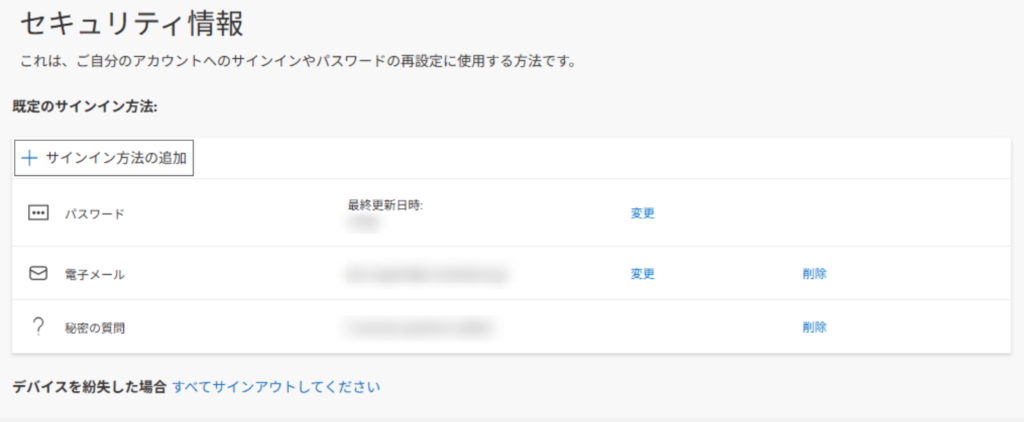
(2) You may be required to authenticate using the method you have already registered, such as SMS or Microsoft Authenticator.
Different screens will appear depending on your settings. Please follow the applicable information below.
| If you have registered Microsoft Authenticator or SMS but cannot receive the verification code |
You need to reset your MFA settings. Go to the link below to reset them.
Reset your multi-factor authentication settings in M365 (Please sign in to the portal site using your Unified Authentication System ID and password.) (If you do not have a Unified Authentication account, see ※1.) |
| If the “Need more information” window appears |
How to set up Microsoft Authenticator How to set up other MFA methods |
| If the “Let’s keep your account secure” window appears | |
| If no window appears |
※1
If you do not have a Unified Authentication account (e.g., if you are a temporary staff member) and need to reset MFA settings, you can submit a request using the form below:
https://forms.cloud.microsoft/r/MzcJ9QxzjE
When submitting the form, you are required to sign in with an @un account. Please ask someone in your department who has a Unified Authentication account.
How to set up Microsoft Authenticator:
Please refer to the page below for instructions on how to set up Microsoft Authenticator.
How to Set Up Multi-Factor Authentication for your University of Tsukuba Microsoft Account (@u, @un) Using Microsoft Authenticator
(Please sign in to the portal site using your Unified Authentication System ID and password.)
How to set up other MFA methods
If you are unable to install Microsoft Authenticator or prefer not to use a personal device for MFA, please refer to the link below.
Flowchart for selecting a suitable authentication method for M365
(Please sign in to the portal site using your Unified Authentication System ID and password.)
For those who have set up only SMS and phone calls as MFA methods:
In our previous notice (August 24, 2026), we announced the following:
Changing specifications for the methods of authentication in the multi-factor authentication of Microsoft 365 (Discontinuation of SMS and voice call-based multi-factor authentication)
According to the notice from Microsoft, starting on February 1, 2026, SMS and phone calls can no longer be used as MFA methods for @u and @un accounts. If you have set up only SMS and phone calls as MFA methods, please follow the instructions in “How to set up Microsoft Authenticator” or “How to set up other MFA methods” above and set up Microsoft Authenticator or another MFA method by February 1, 2026.
For users of third-party mail apps (other than Outlook or the iOS Mail apps):
Due to the enforcement of multi-factor authentication for Microsoft 365, you may no longer be able to send emails using authentication methods other than “Modern Authentication” (i.e., Legacy Authentication) if you use third-party mail apps.
Therefore, users of third-party mail apps should check again whether Modern Authentication is properly configured, as advised by the Academic Computing and Communications Center. Please refer to the guide below for details:
(e.g., Thunderbird) Read mail with SMTP, IMAP, or POP clients(@u.tsukuba.ac.jp)
Contacts:
・For @u
Academic Computing and Communications Center
Inquiries Regarding EES and Microsoft 365
・For @un
Division of Information Infrastructure Management, Department of Academic Information
sk.johositu[at]un.tsukuba.ac.jp (Please replace [at] with “@”.)
Related FAQs:
I did not receive a code when signing in to Microsoft 365
The “Let’s protect your account” and “Sign in faster with your face, fingerprint, or PIN” screens appear