EES
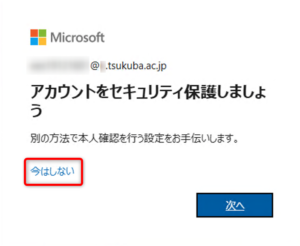
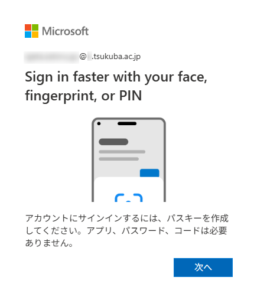
When you sign in with your @u or @un Microsoft 365 account, the “Let’s keep your account secure” screen may appear. After you select “Next,” you may then see the “Sign in faster with your face, fingerprint, or PIN” screen.
These screens guide you through setting up a passkey for signing in to Microsoft 365.
Currently, setting up a passkey is optional.
If you would like to set up a passkey, please refer to the following instructions:
for Windows: How to sign in to Microsoft 365 using passkeys –with Windows Hello–
for Mac: How to sign in to Microsoft 365 using passkeys –with iCloud Keychain–
(Please log in with your Unified Authentication ID/PW when accessing this page.)
If you do not want to set up a passkey, on the “Let’s keep your account secure” screen, select “Not now” or simply close the screen.
EES - Account and Authentication
When you sign in with your @u or @un Microsoft 365 account, the “Let’s keep your account secure” screen may appear. After you select “Next,” you may then see the “Sign in faster with your face, fingerprint, or PIN” screen.
These screens guide you through setting up a passkey for signing in to Microsoft 365.
Currently, setting up a passkey is optional.
If you would like to set up a passkey, please refer to the following instructions:
for Windows: How to sign in to Microsoft 365 using passkeys –with Windows Hello–
for Mac: How to sign in to Microsoft 365 using passkeys –with iCloud Keychain–
(Please log in with your Unified Authentication ID/PW when accessing this page.)
If you do not want to set up a passkey, on the “Let’s keep your account secure” screen, select “Not now” or simply close the screen.