Overview
Microsoft Enrollment for Education Solutions (EES), which our university has contracted, allows you to upgrade the Windows OS. This section mainly describes how to upgrade in the Windows OS environment.
Prior precautions
- Only the faculties are permitted to download and install this software. Students cannot download or install it. Also, installation and upgrade are permitted to PCs owned by the Univ.
In the cases that students doing the upgrade to the laboratory PCs (owned by the Univ.), the installer must be downloaded by the supervisor of the laboratory. - “Upgrade” means, in principle, conversion from the currently used OS to a higher level version. For this reason, new OS installations on PC without an OS are not covered.
- For restrictions on the Windows OS versions and editions that can be upgraded, please check the following Microsoft website.
Windows upgrade paths - An OEM version that came with another PC cannot be upgraded and used for a fresh installation of Windows OS.
- Windows 10 support from Microsoft will end on October 14, 2025, so it is no longer provided here.
- Before upgrade to Windows 11, please make sure that your PC satisfies the Windows 11 system requirements. For details, please refer to the following Microsoft webpage.
Find Windows 11 specs, features, and computer requirements
Please note that the edition provided here is the Enterprise edition under the EES agreement.
If your current PC is running Windows 10 Home/Pro and was not obtained through this EES service, and you only want to upgrade from Windows 10 to Windows 11, you may be able to update it through Windows Update screen or from Microsoft’s official website. (If you upgrade using the Windows OS upgrade version provided here, license authentication will use the method under this EES agreement (KMS license authentication).) - For Windows OS installation on Mac, you can use the Windows OS license provided by EES using one of the following two methods.
・ Using Windows OS with Apple Boot Camp
・ Deploy Windows OS as virtual OS on third party virtual software on Mac OS.
(Virtual software refers to VMware Fusion, Parallels Desktop, Virtual Box, etc. Please confirm for yourself about the specific installation method.) - In addition, at this helpdesk, we do not support at the time of OS installation. Please do everything at your own risk.
Upgrade Procedure
- From the following URLs, please choose the one that suits your environment.
When downloading, you are required to enter your ID and password. Please use unified authentication ID (UTID-13) and password.
Windows 11 Enterprise Edition
※Microsoft does not provide 32bit version for Windows 11 and later.
(ISO)
Japanese edition 64Bit edition
https://portal.cc.tsukuba.ac.jp/sso/download/staff-only/windows11enterprise-ver24h2-jp-x64.ISO
English edition 64Bit edition
https://portal.cc.tsukuba.ac.jp/sso/download/staff-only/windows11enterprise-ver24h2-en-x64.ISO
(zip)
Japanese edition 64Bit edition
https://portal.cc.tsukuba.ac.jp/sso/download/staff-only/windows11enterprise-ver24h2-jp-x64.zip
English edition 64Bit edition
https://portal.cc.tsukuba.ac.jp/sso/download/staff-only/windows11enterprise-ver24h2-en-x64.zip - About decompression of zip data and ISO file
Unzip zip data
As the zip function of Windows can not decompress normally due to the file size of zip data, please install 7zip and other free decompression software to unzip.
The URL about 7zip is shown as reference information.
External site(https://7-zip.opensource.jp/)
※ Please install after checking the number of bits of client OS. 64bit or 32bit.
When installation of 7zip is completed, please decompress with 7zip. (Select unzip with 7zip with right click on zip data) - After decompression, execute setup.exe in the decompression folder and install according to each dialog screen.
※ For “Select image”, select the edition to upgrade. Select “Windows 11 Enterprise” here.
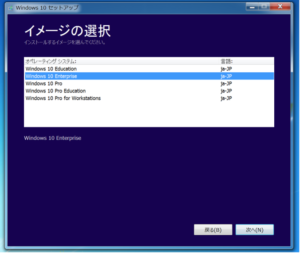
- After upgrading to Windows 10 or 11, apply the license according to the following procedure.
※ If you do not activate the license, after a while, the function of Windows OS will be restricted and unavailable
(1)Download MicrosoftLicenseAppTool.zip.
https://portal.cc.tsukuba.ac.jp/sso/download/staff-only/MicrosoftLicenseAppTool.zip
(2)Double click MicrosoftLicenseAppTool.reg in the folder by unzipping the download zip file. If the “Security Warning” screen is displayed, click “Execute”. If the User Account Control screen is displayed, click “Yes”.
(3)The Registry Editor screen is displayed. Click “Yes” to the question “Do you want to continue?”. If “Successfully added to the registry” is displayed, so click “OK”.
(4)Restart your PC, and activation will be completed after a while.
(5)To confirm that the license activation has been completed, Please check the license activation part of the system information. You can check it from Control Panel → System and Security → System → “Windows License Activation”.
If “Windows is licensed” is displayed, it is validated.
※ If you are not licensed, please check About KMS License Authentication. - The upgrade is complete.