Microsoft 365 Apps for enterprise can be installed and used on up to 5 personally owned PCs/MACs, 5 tablets, and 5 smartphones per person.
For information on using Office on shared PCs, please refer to this page.
Installation Procedure for Microsoft 365 Apps for enterprise
- Access login.microsoftonline.com and sign in with your @u or @un account.
- Select the “:::” (app launcher) in the top left, then click “More apps.”
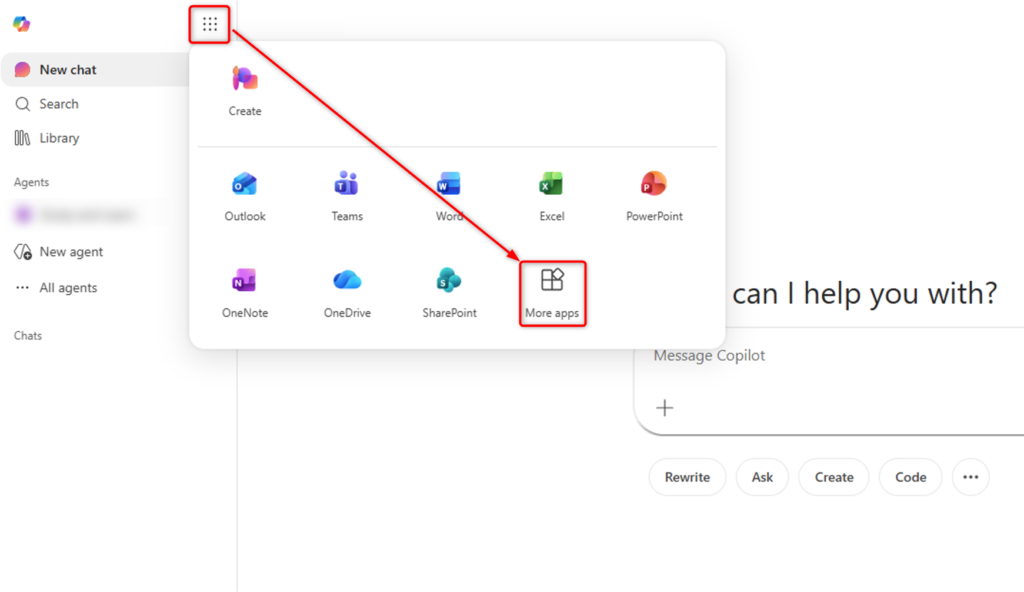
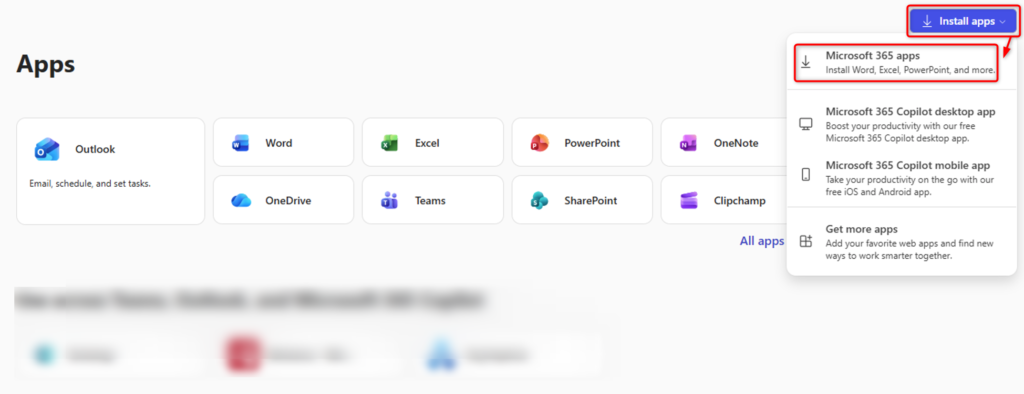
On the displayed screen, select “Install apps” in the upper right, and then click “Microsoft 365 Apps.”
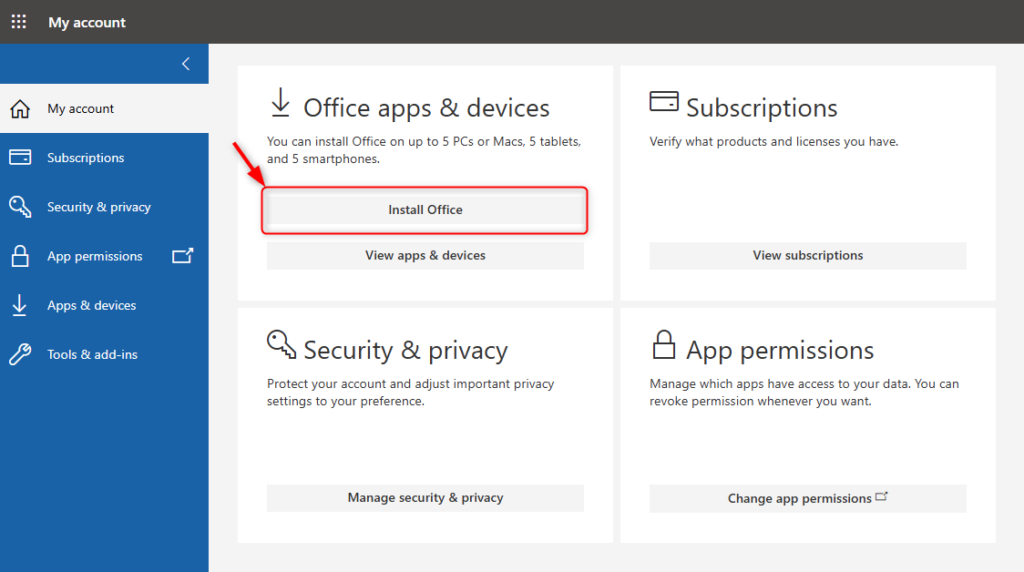
You can also select “Install Office” under the section titled “Office apps & devices” to download the installer (OfficeSetup.exe).
Run the downloaded OfficeSetup.exe file and follow the on-screen instructions to install Office.
Notes:
・For Windows OS, it is not available from the Microsoft Store.
・For Mac OS, it is also available from the AppStore. (You will need to install the app such as Word, Excel, PowerPoint separately.)
・For Chromebooks, Microsoft does not provide a desktop app version like it does for Windows or Mac OS. Please use it as a web app.
・For smartphones and tablets (iOS, iPadOS, Android OS), the software is available from the App Store and Google Play Store
※If the Office application (Office Home Business, etc.) is already installed and available on the terminal you are already using, you do not need to install the Microsoft 365 Office of this university. However, for reasons such as older versions, if you want to replace Office, you need to uninstall them and then install them. (Please uninstall at your own discretion.) - Launch the installed Office application (Word, Excel, PowerPoint, etc.)
- When the app starts, the sign-in (license authentication) screen will be displayed. Sign in with your Microsoft 365 (@u or @un) account.
※If you see the [Sign in to all apps, websites, and services on this device?] screen (confirming my organization to manage my device), select [No, this app only].
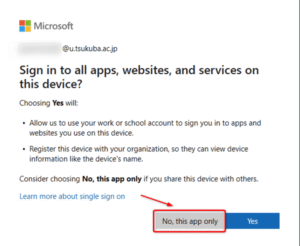
If you selected [Yes] or are unsure which option you chose, follow the steps below to bring up the same screen.
(1) Windows icon (bottom left corner of the screen)
(2) Settings (gear)
(3) Account
(4) “Access to Work or School”
(5) If you see the @u or @un account of the University’s Microsoft 365 account in the list of accounts on the screen, select it by left-clicking once and try to disconnect (sign out) the account.
※Please note that this is not the domain participation part of OWA’s @un.
(6) Restart your PC.
(7) Launch Teams or Office application again and sign in with the University’s Microsoft 365 account (@u or @un)
★On the [Sign in to all apps, websites, and services on this device?] screen (confirming my organization to manage my device), click “No, this app only”. - If you sign in successfully, you can use the Office app.