Microsoft 365 provides multi-factor authentication to enhance account security. In addition to a regular password, Multi-factor authentication verifies the user’s identity by using multiple authentication factors, such as approval through an authentication app installed on a smartphone or entry of a verification code sent by SMS. This can significantly reduce the risk of unauthorized access caused by password leaks, theft, phishing attacks, and other threats. To use Microsoft 365 more securely, we recommend setting up multi-factor authentication.
Note: At the University of Tsukuba, the configuration and usage of MFA differ between @u and @un accounts.
For @u accounts
- About MFA Configuration
You can enable or disable MFA at your own discretion through the Cloud Mail Service Authentication Settings System (Microsoft 365)(accessible from on campus only. If accessing from off campus, click here).
If MFA is enabled, authentication is generally required only when accessing the service from an off-campus network.
Please note that, due to Microsoft’s specifications, you may be required to configure multi-factor authentication or set up the Microsoft Authenticator app regardless of whether multi-factor authentication is enabled or disabled. - For first-time users (such as new students and newly hired faculty/staff)
please refer to the following page:
Please refer to the sections “Set up multi-factor authentication for Microsoft 365” and “Sign in to Microsoft 365 for the first time” in the Microsoft 365(M365) Usage Guidelines (When accessing this page, please sign in with your Unified Authentication ID and password.) - For users who are unsure of their current settings or want to check their configuration
If you are unsure of your current settings and would like to enable MFA, please check the information below.- Make sure MFA is enabled in the Cloud Mail Service Authentication Settings System (Microsoft 365) (accessible from on campus only. If accessing from off campus, click here).
- Visit the following page and sign in with your @u account: https://mysignins.microsoft.com/security-info
※If you are prompted for MFA at this point, use any available authentication method to receive a verification code and complete verification. If you are unable to receive a verification code, please refer to For users who cannot receive authentication codes (e.g., due to a device change), reset your authentication settings, and then set them up again. - As shown on the screen below, MFA has been set up when Phone or Microsoft Authenticator is registered as an authentication method.
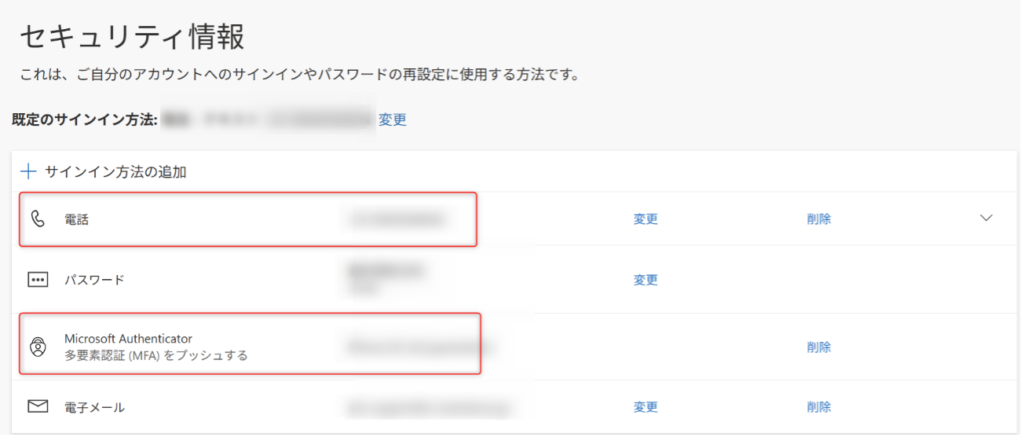
Please note that setting up only an email address (except for University of Tsukuba @u or @un email addresses) is not sufficient as an MFA authentication method. For MFA, the recognized authentication methods are Phone and Microsoft Authenticator.Setting up either one is sufficient, but setting up both is recommended in case one becomes unavailable for some reason.(Please note that these authentication methods may change depending on Microsoft’s specifications.)
- For users who cannot receive authentication codes (e.g., due to a device change)
Please refer to the following page.
It may also be helpful if you are unable to install the Microsoft Authenticator app. (Reset and reconfiguration)
Resetting M365 MFA Settings(When accessing this page, please sign in with your Unified Authentication ID and password.)
※Note: If you are unable to receive an authentication code for your @u lifetime email account and need a reset, please refer to Lifetime Email Addresses.
For @un accounts
- MFA is enabled for all accounts by the administrator and cannot be disabled. Authentication is generally required only when accessing the service from an off-campus network.
Please note that, due to Microsoft’s specifications, you may be required to configure MFA or set up the Microsoft Authenticator app regardless of whether MFA is enabled or disabled. - For first-time users (such as newly hired faculty/staff)
Please refer to the following page:
https://ksp.sec.tsukuba.ac.jp/wp/?page_id=198060#firststep
After signing in to the faculty and staff site, please refer to “はじめに(アカウントの通知書を受け取ったら)” → “多要素認証について” under “unメールの利用方法、利用環境について”. - For users who are unsure of their current settings or want to check their configuration
If you are unsure of your current settings and would like to enable MFA, please check the information below.- Visit the following page and sign in with your @un account: https://mysignins.microsoft.com/security-info
※If you are prompted for MFA at this point, use any available authentication method to receive a verification code and complete verification. If you are unable to receive a verification code, please refer to For users who cannot receive authentication codes (e.g., due to a device change), reset your authentication settings, and then set them up again. - As shown on the screen below, MFA has been set up when Phone or Microsoft Authenticator is registered as an authentication method.
Please note that setting up only an email address (except for University of Tsukuba @u or @un email addresses) is not sufficient as an MFA authentication method. For MFA, the recognized authentication methods are Phone and Microsoft Authenticator. Setting up either one is sufficient, but setting up both is recommended in case one becomes unavailable for some reason. ( Please note that these authentication methods may change depending on Microsoft’s specifications.)
- Visit the following page and sign in with your @un account: https://mysignins.microsoft.com/security-info
- For users who cannot receive authentication codes (e.g., due to a device change)
Please refer to the following page.
It may also be helpful if you are unable to install the Microsoft Authenticator app. (Reset and reconfiguration)
Reset your multi-factor authentication settings in M365
(When accessing this page, please sign in with your Unified Authentication ID and password.)
Only if you do not have a Unified Authentication account (such as temporary worker) please apply using the form below.
Inquiry and Request Form for un Microsoft 365 Accounts
※You must sign in with a @un Microsoft account to use this form.
Please ask someone in your department who has a @un Microsoft account to complete the form.
Contact
Please refer to Inquiries Regarding EES and Microsoft 365.