What is OneDrive?
OneDrive is a personal cloud storage service included with Microsoft 365.
By signing in with your university @u or @un Microsoft account, you can use OneDrive storage of 100 GB per user for faculty and staff, and 50 GB per user for students.
(In line with Microsoft’s changes to tenant storage capacity specifications, the storage capacity limits for our Microsoft 365 service were also changed in May 2025. For details, please see “Regarding Storage Capacity Limits for Microsoft 365”.)
What is SharePoint?
SharePoint is a service that supports information sharing and collaboration within teams and organizations.
You can create sites for departments, projects, and other groups within the university, and use them for file sharing, announcements, workflows, and other purposes. When you create a team in Teams, a SharePoint site for that team is automatically created.
Each site can use up to 100 GB of storage.
(In line with Microsoft’s changes to tenant storage capacity specifications, the storage capacity limits for our Microsoft 365 service were also changed in May 2025. For details, please see “Regarding Storage Capacity Limits for Microsoft 365”.)
Since early February 2026, when a new Teams team (Microsoft 365 group) is created, “-group” has been automatically added to the end of the team name.
Reference: On New Teams and SharePoint Group Names
How to Use the App and Notes
We do not provide support for how to use the app. Please refer to Microsoft’s website and other resources as needed.
Important Notes
- File sharing
In OneDrive and SharePoint, you can share files and folders with users outside the university. However, the settings for the scope of file sharing may pose security risks, so please configure them carefully.- OneDrive sharing settings screen
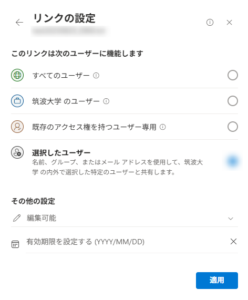
If you set the sharing option to “Anyone” and share the file or folder, users outside the university will also be able to access and view it.
(In general, anyone who knows the URL will be able to access it.)
If you set the sharing option to “University of Tsukuba users” and share the file or folder, all users with a university Microsoft account will be able to access and view it. (This includes all @u and @un users.)
If you choose “Specific people,” only the people you add will be able to access and view the file or folder. - SharePoint sharing settings screen
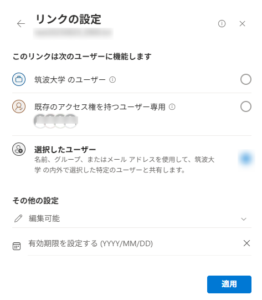
For SharePoint, members of the SharePoint site or Teams team can generally access the files and folders. In other words, anyone who is a member of the site or team will be able to access them.
- OneDrive sharing settings screen
Contact
We do not provide support for the operation or use of this service or software.
Reference:OneDrive for work or school help